

Reports in the Completion Status System can be created for the LEA by selecting [Generate Report] after entering criteria. When an LEA report includes 20 or fewer schools, results are displayed on-screen.
Plan and Manage Testing, Search by SSID, and Progress Summary Reports
Display Features
Navigation and configuration features are shown in figure 1 and described in this subsection.
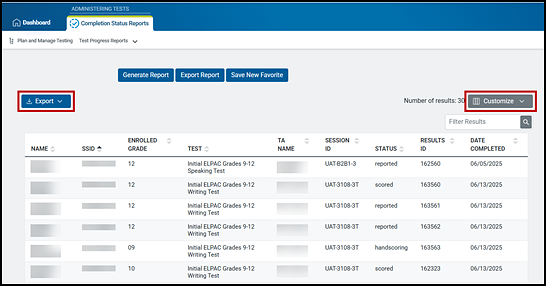
Figure 1. Sample School Plan and Manage Testing Report—Initial ELPAC
- Navigation Tools:
- By default, 50 student records can be displayed on the screen at a time. Navigation buttons are displayed at the bottom of the report to enable navigation through all the retrieved records.
- By default, the table displays 23 columns of available data. To view all of the available data—and depending on the user’s monitor resolution—there might be a horizontal scroll bar at the bottom of the report. Table 1 identifies all of the columns present in a report and provides a description of each one. Table 2 provides a definition for each test status (listed in the Status column).
- Export List—The [Export] button, which appears over the top-left corner of the table and is indicated in figure 1, provides a drop-down list that allows a user to download the on-screen report as either a spreadsheet or CSV file in Excel.
- Customize—Show or hide columns or customize the display in the table by selecting the [Customize] button in the top-right corner of the table (figure 1).
-
When this icon is selected, a panel opens that shows a list of the columns in the table on one side and a list of visual customization options shows on the other (figure 2).
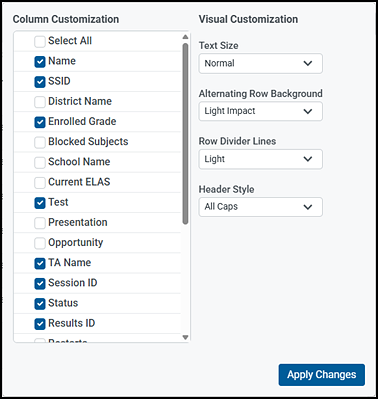
Figure 2. Column and display customization panel
- Uncheck the box next to the column name to hide it. This will remove the column from view.
- Select an option from a drop-down list on the right to customize a feature such as text size.
- Select the [Apply Changes] button to apply any customizations (figure 2). To remove the panel from view, click or select blank space or another object on the screen.
-
- Sort Results by Attribute—Report data can be sorted in any column. Select the column header to sort data in ascending (A–Z; 1–10) or descending (Z–A; 10–1) order. The default sort order is by Student Name, in ascending order by last name.
- General Tools—Reports also provide access to the Help and Account tools. For information on the functions of each of these tools, refer to Header with General Tools.
Column Definitions
Possible column headings for Plan and Manage Testing (basic and advanced), Search by SSID, and Progress Summary reports are shown in table 1. These are the same for both on-screen and spreadsheet reports.
| Column | Description |
|---|---|
|
Name |
A student’s preferred name (last name, first name) as listed in CALPADS |
|
SSID |
The student’s unique California SSID |
|
District Name |
The LEA in which a student’s school is located (An NPS is listed under all parent LEAs.) |
|
Enrolled Grade |
The grade level in which a student is enrolled |
|
Blocked Subjects |
The content area or domain in which the student is blocked from taking assessments
|
|
School Name |
The school in which a student is currently enrolled |
|
Current ELAS |
Indicates whether the student is an EL
|
|
Test |
Test name for a student record showing the assessment or domain opportunity
|
|
Presentation |
The presentation setting that was assigned to the student (English, Spanish, or braille for CAASPP; and English or braille for the Initial ELPAC or Summative ELPAC) |
|
Opportunity |
The opportunity number for a specific student record
|
|
TA Name |
The TA or TE who created the session in which the student is currently testing (or in which the student completed the assessment) |
|
Session ID |
The session ID to which the assessment is linked |
|
Status |
The status for that specific opportunity (Refer to table 2 for test status definitions.) |
|
Results ID |
The unique identifier linked to the student’s results for that specific opportunity
|
|
Restarts |
The total number of times a student has resumed an opportunity (For example, if an assessment has been paused three times and the student has resumed the opportunity after each pause, this column will show three “Restarts.”)
|
|
Restarts within Grace Period |
The total number of times a student has resumed an opportunity within 20 minutes after an assessment was paused (For example, if an assessment has been paused three times and the student resumed the opportunity within 20 minutes of two pauses but 35 minutes after the third pause, then this column will show two Restarts within Grace Period. This column does not apply to PTs or the alternate assessments.)
|
|
Date Started |
The date when the first test item was presented to the student for that opportunity |
|
Date Completed |
The date when the student submitted the assessment for scoring |
|
Last Activity |
The date of the last activity for that opportunity or record
|
|
Expiration Date |
The date the test opportunity expired (This field is blank if the assessment has not expired.) |
|
Force Complete Date |
|
|
Remote Session |
Indicates that the assessment was administered remotely (This field is populated as a Y/N value.) |
|
Secure Browser |
Indicates whether the assessment was taken using the secure browser or the web-based Student Testing Interface (This field is populated as a Y/N/Partial value, where “Partial” indicates that the student took part of an assessment using the secure browser and part of an assessment using the web-based student testing interface.) During high-volume testing, this value may take an extended amount of time before it updates from “N” to “Y” for students who tested using a secure browser. |
Status Definitions
Table 2 defines the possible values in the Status column of Plan and Manage Testing (basic and advanced), Search by SSID, and Progress Summary reports.
| Status | Definitions |
|---|---|
|
Approved |
The TA or TE has approved the student for the session, but the student has not yet started or resumed the assessment. |
|
[blank] |
The student has not begun this assessment. |
|
Completed |
The student has submitted the assessment for scoring. No additional action can be taken by the student. If the assessment is one that requires hand scoring, such as the Initial ELPAC or an interim assessment, it means that hand scoring is either not started or is in progress. |
|
Denied |
The TA or TE denied the student entry into the session. If the student attempts to enter the session again, this status will change to “Pending” until the TA or TE approves or denies the student. |
|
Expired |
The student’s opportunity has not been completed and cannot be resumed because the test opportunity has expired.
|
|
Handscoring |
Hand scoring is either not started or in progress. |
|
Invalidated |
The CAASPP test result has been invalidated; for example, if an unlisted resource changes the construct being measured, an assessment may be invalidated. (This Appeal type does not apply to ELPAC.) |
|
Paused |
The student’s assessment is currently paused. The following scenarios will result in a paused status:
The time listed with this status indicates how long the student’s assessment has been in the “Paused” status. |
|
Pending |
The student is awaiting TA or TE approval for a new test opportunity.
|
|
Reported |
The student’s score for the completed assessment in the TDS has passed the quality assurance review and has been submitted to CERS. Some items must be hand scored before they appear in CERS. |
|
Review |
The student has answered all test items and is currently reviewing the answers before submitting the assessment. (An assessment with a “Review” status is not considered complete.) |
|
Scored |
The TDS has processed the student’s responses to items—either machine-scored or hand scored—on the assessment. |
|
Started |
The student has started the assessment and is actively testing. |
|
Submitted |
The assessment has been submitted for quality assurance review and validation before scores can be released. A quality assurance engine examines submitted assessments for a number of statistical elements before they are reported, including reviews for scoring errors. Results with this status are not yet available to be viewed. |
|
Suspended |
The student is awaiting TA or TE approval to resume a test opportunity. |