

Second Scoring: Using the Data Entry Interface
Overview
Each year, a subset of schools assigned to form 2 will be required to participate in second scoring for the Summative Alternate ELPAC. For further directions on second scoring, please refer to the Summative Alternate ELPAC: Second Scoring subsection of this manual.
The secondary TE must be present at all times during test administration. Questions that require second scoring will have the [Second Scoring] double check marks [ ] icon next to the item within the DFA. At the time of testing, the secondary TE will observe the student’s response to rubric-scored test questions, then use the rubric in the DFA to score the student’s response to the test question (figure 1). This score should reflect independent judgment.

Figure 1. Rubric in the DFA
While the TE is administering the assessment, the secondary TE can either enter scores directly into the DEI during testing, if using a different device; or record the score in the answer recording sheet on the last page of the DFA (in appendix C) for entry into the DEI after testing but before the end of the test administration window. This score should reflect independent judgment. Remember that in the DFA scripts, receptive test questions are marked with an “R” [ ] icon and expressive test questions with an “E” [
 ] icon. The secondary TE must only record answers to expressive test questions. Appendix C of the DFA contains the Answer Recording Sheet for Second Scoring, as shown in figure 2.
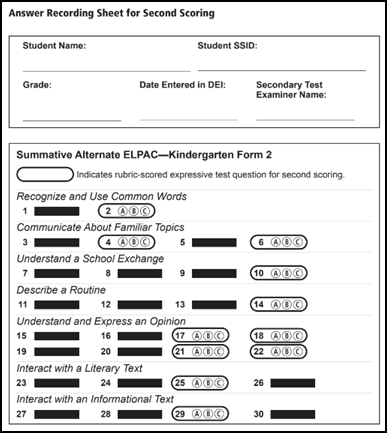
Figure 2. Sample Answer Recording Sheet for Second Scoring for kindergarten
Entering Student Responses
All second scores should be entered into the DEI before the end of the test administration window, either by the secondary TE or the designated data entry staff who have been trained. For directions on logging on to the DEI, follow the instructions in the Using the DEI chapter in the ELPAC Online Test Administration Manual. If responses were not entered into the DEI in real time, then use the responses from the Answer Recording Sheet for Second Scoring when entering data into the DEI.
After the user logs on to the DEI, the DEI presents a screen for the user to select the assessment for the student. On the Available Tests screen, select the orange [Alternate ELPAC - Second Scoring Data Entry] button for the Alternate ELPAC (figure 3).
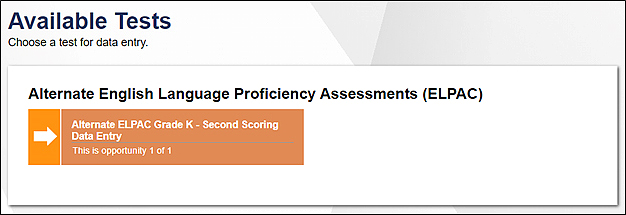
Figure 3. Available Tests selection box
After selecting the appropriate assessment for the student (figure 3), an introductory screen will appear with directions (figure 4). Select [Next] to continue entering scores.
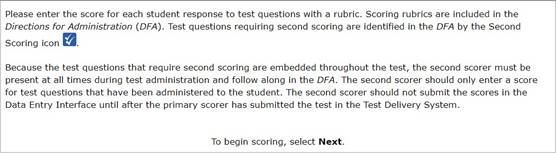
Figure 4. Introductory screen
Before the secondary TE inputs scores for the items, the DEI will display the question number that requires a second score (figure 5). Please make sure to check if the question number matches the DFA. Select [Next] to continue entering scores.

Figure 5. Sample instructions for the TE
After scores for all items have been entered, an instructional screen will appear (figure 6). Make sure to review all the responses before ending the assessment.

Figure 6. Instructional screen for the TE
Then, select the [Next] button to proceed to the Data Entry Summary screen (figure 7). Only select the [Submit Test] button when ready to end the assessment.
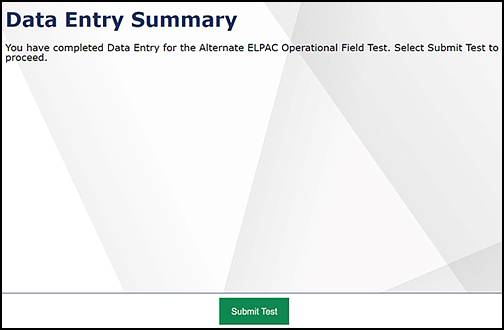
Figure 7. Data Entry Summary screen
A dialog box will appear (figure 8). Select [Yes] to end the assessment.
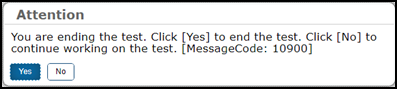
Figure 8. Attention dialog box
A Test Submission Record screen will appear to confirm the SSID, test name, and the date when the test administration was completed in the DEI (figure 9). Select one of the following options: [Log Out], [Enter Responses for a Different Test], or [Enter Responses for a Different Student].
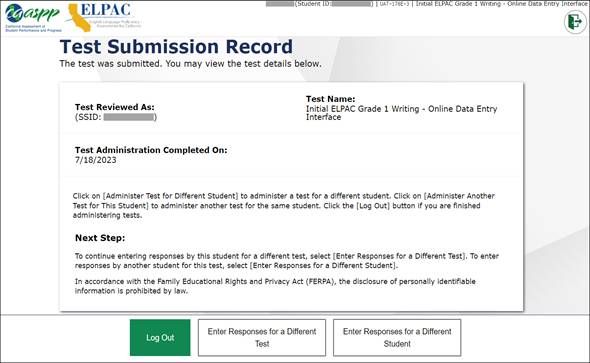
Figure 9. Test Submission Record screen